Introduction
This is the program that implements the server of the software. The program it is been implemented using tabs: Info tab, Clients tab, Problems tab and Messages tab.
Info tab
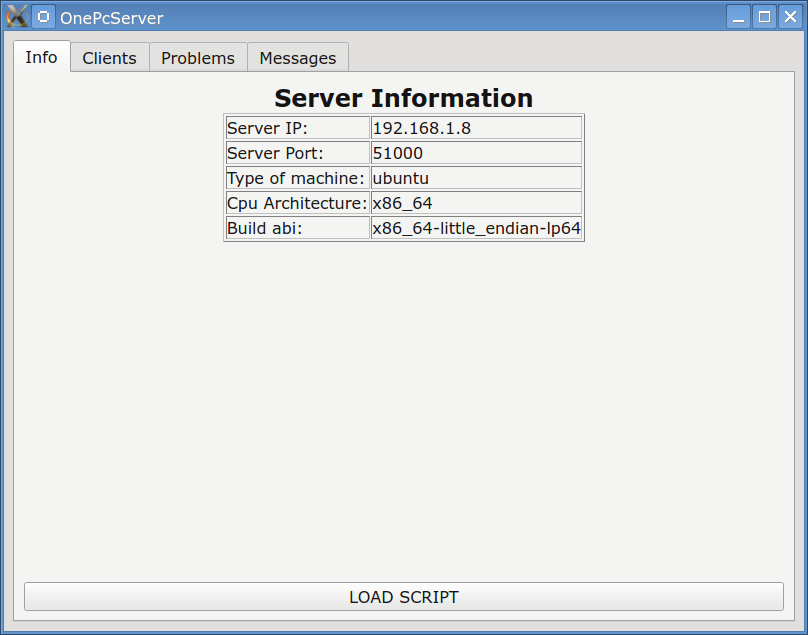
This is the first tab of the application. The tab contains information about the machine running the server. The information is displayed in the center of the tab in array form as shown in figure Fig1. The most important information from this tab is the IP of the server and the port where it is running. This information should be used by the clients that want to connect to genetic server. Also, the user can load OneScript programs using the button LOAD SCRIPT.
Clients tab
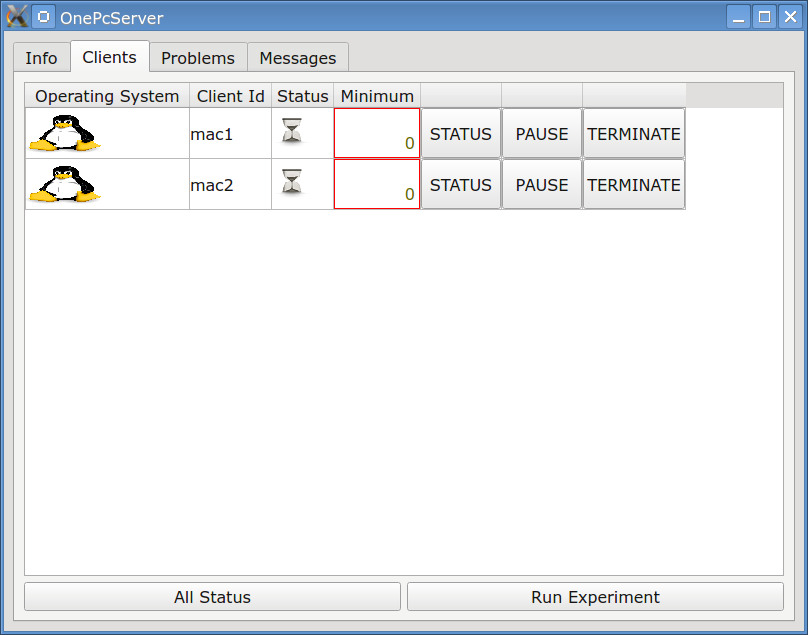
The Clients tab displays information about the connected clients. A typical screen is show in figure fig2. The information is displayed in table format. In every row of the table the associated information about each connected client is displayed. Each row has 7 columns with the following meaning for each column:
(a) Linux
(a) Android
(c) Windows
(d) MacOS
(e) FreeBSD
3. Column 3: The status of the client is displayed in this column in icon format. There are 4 status for every client
(a) Wait. In this status the client waits for information from the server.
(b) Running. In this status the client executes the objective problem that the server has sent.
(c) Paused. In this status the client has paused the execution of the genetic algorithm.
(d) Finished. In this status the client has terminated with success the genetic algorithm.
5. Column 5: In this column the button STATUS is shown. This button is used to require information from the client such as the identified minimum and the the current status.
6. Column 6: In this column the button PAUSE is shown. This button is used to pause the execution of the genetic algorithm in the corresponding client.
7. Column 7: In this column the button TERMINATE is shown. This button is used to terminate the corresponding client.
Also in this tab two additional buttons are shown in the bottom of the tab:
1. All status. This button sends a broadcast message to every client requiring status information from them and the so far discovered local minimum.
2. Run Experiment. This button sends on every client the objective function. The function will be sent in the corresponding format of every
client depending of the running operating system. Afterwards each client starts the genetic algorithm. The can not press the button if an experiment is in progress.
Problems tab
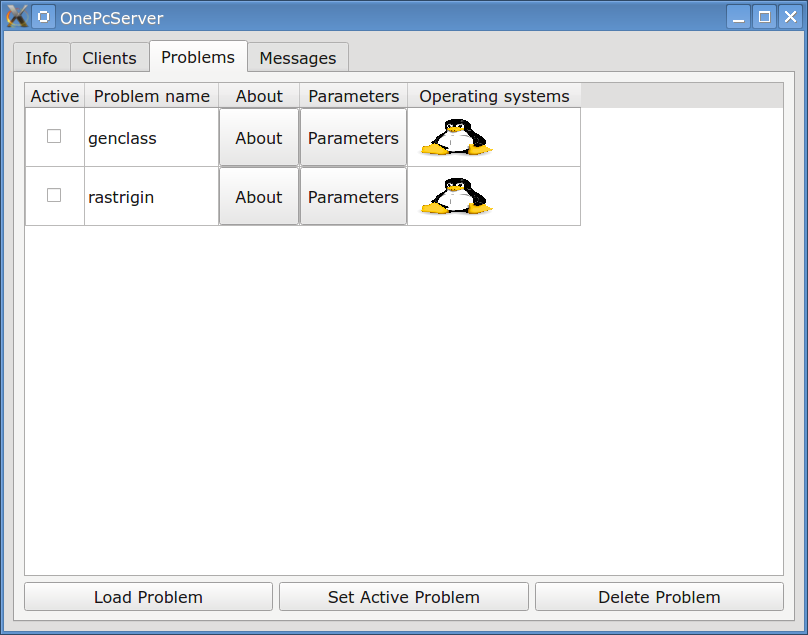
The information about the stored objective problems is outlined in this tab. A typical screen for this tab is shown in figure Fig3. This information is stored in a sqlite3 database named gaserver.db3 in the same folder with the running server. The information for every objective problem is listed in table format, one row for every problem. In every row there is information about the objective problem in 5 columns:
1. Column 1: The user can specify if the corresponding problem will be the active one by ticking the checkbox in this cell. Each time only one problem will be regarded as the active problem. The user should tick the checkbox and then he should press the button Set Active Problem at the bottom of the tab.
2. Column 2: The name of the objective problem is displayed in this cell.
3. Column 3: A button with the label About is shown here. The user can obtain information about the corresponding problem by hitting this button. The information contains discovered global minima from previous run and an example is shown in figure Fig4 for the function Rastrigin. The information is retrieved from the Sqlite3 database and it is displayed again in table format. In every row a distinct run for the objective problem is listed with the following information
(a) Global minimum discovered. This is the global minimum obtained by the run.
(b) Number of generations required.
(c) Operating system of the running client. The operating of the client is displayed in icon format.
(d) A save button. This button saves the discovered global minimum in Json format in a file in the hard disk.
(e) A delete button. This button deletes from the database the current record.
4. Column 4: The button Parameters located here can be used to add or change the parameters of the objective problem.
5. Column 5: The operating systems where the objective function is available are listed in this cell.
1. Load Problem. This button is used to load from the hard disk a new objective problem. The problem should be compiled as a shared library. After loading the problem is stored in the Sqlite3 database.
2. Set Active Problem. This button is used to set as active the problem that have been ticked using the checkbox widget.
3. Delete Problem. This button is used to delete the active problem from the Sqlite3 database.
			# include <math.h>
			extern "C"
			{
			int	getdimension()
			{
				return 2;
			}
			void	getleftmargin(double *x)
			{
				x[0]=-1;
				x[1]=-1;
			}
			void	getrightmargin(double *x)
			{
				x[0]=1;
				x[1]=1;
			}
			double	funmin(double *x)
			{
   				return x[0]*x[0]+x[1]*x[1]-cos(18.0*x[0])-cos(18.0*x[1]);
			}
			}
Messages tab
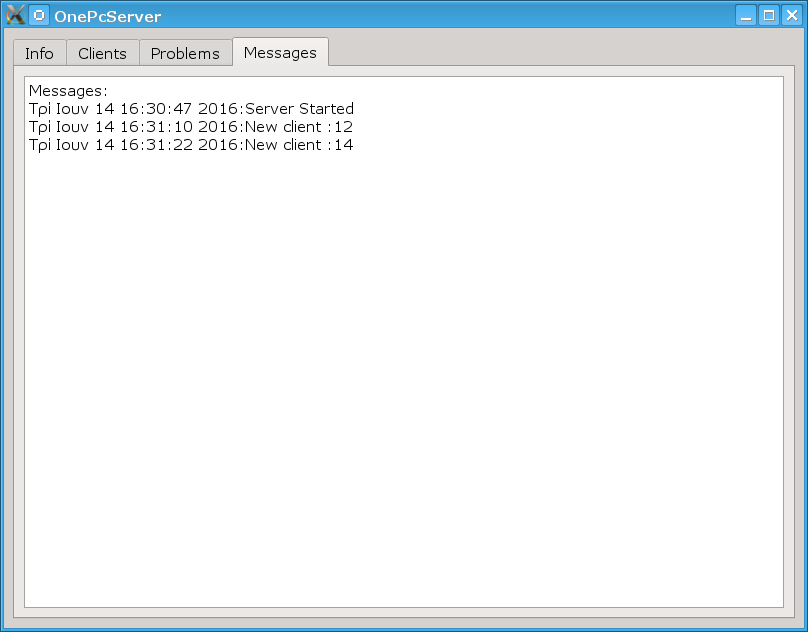
This tab displays debug information for every client as well as about the status of the running server. A typical example is shown in figure Fig5.
The language OneScript
The language OneScript can be used to simplify the execution of a series of problems in OnePC without the interference of the programmer. The commands can be written using capital or lowercase letters. For the time being the language has a simple set of commands which are:
1. SET PROBLEM name. Sets the current problem to name.
2. SET PARAMETER paramName paramValue. Change the value of the parameter paramName to paramValue.
3. RUN. Executes the current problem using the attached clients.